# Home Page / Springboard
### Welcome to Springboard
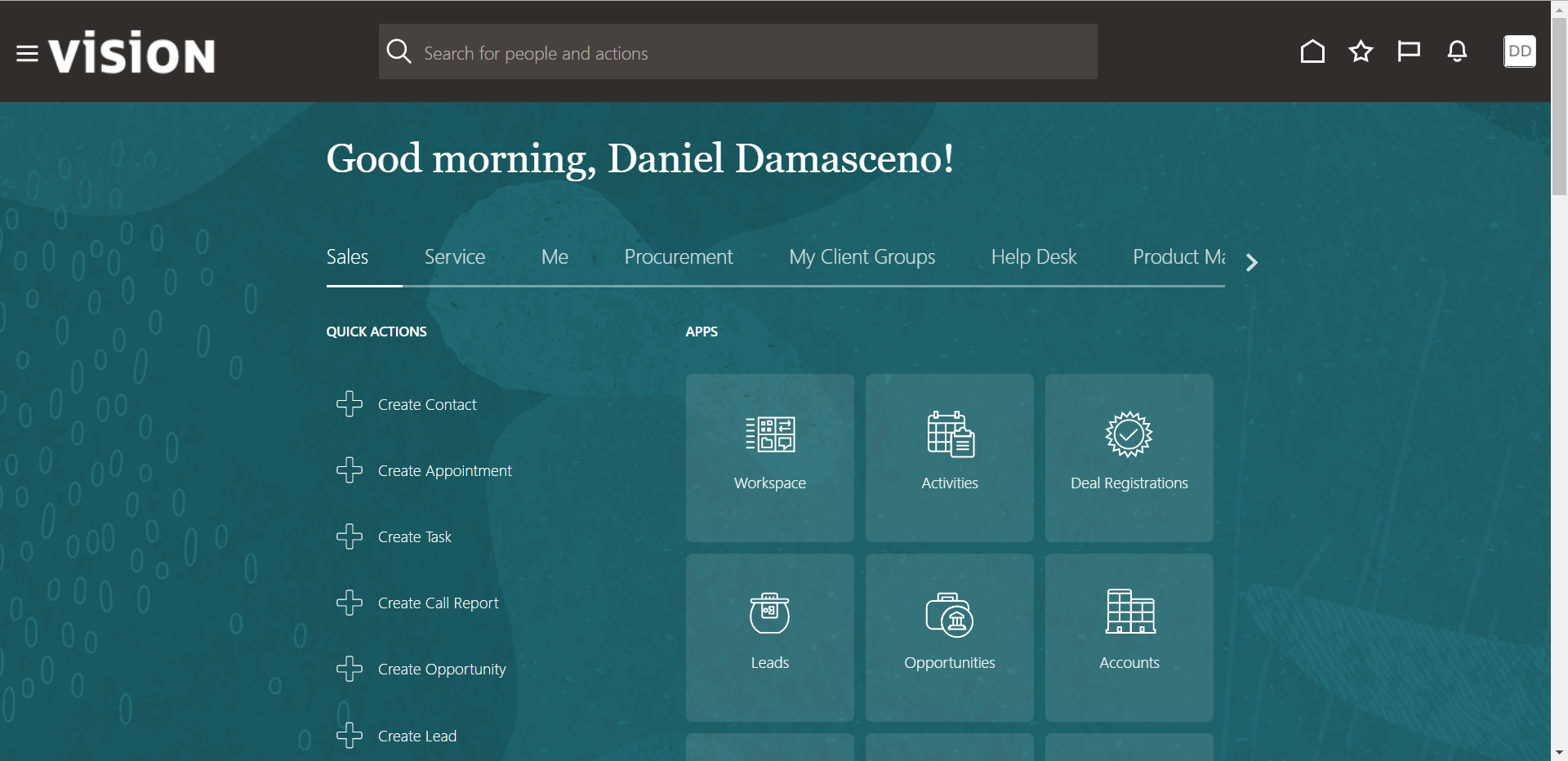
When you log in to Oracle Applications Cloud, the Welcome Springboard, also known as your landing page, appears. The view depends on your roles and privileges.
This page contains several key areas, which we will go over one by one:
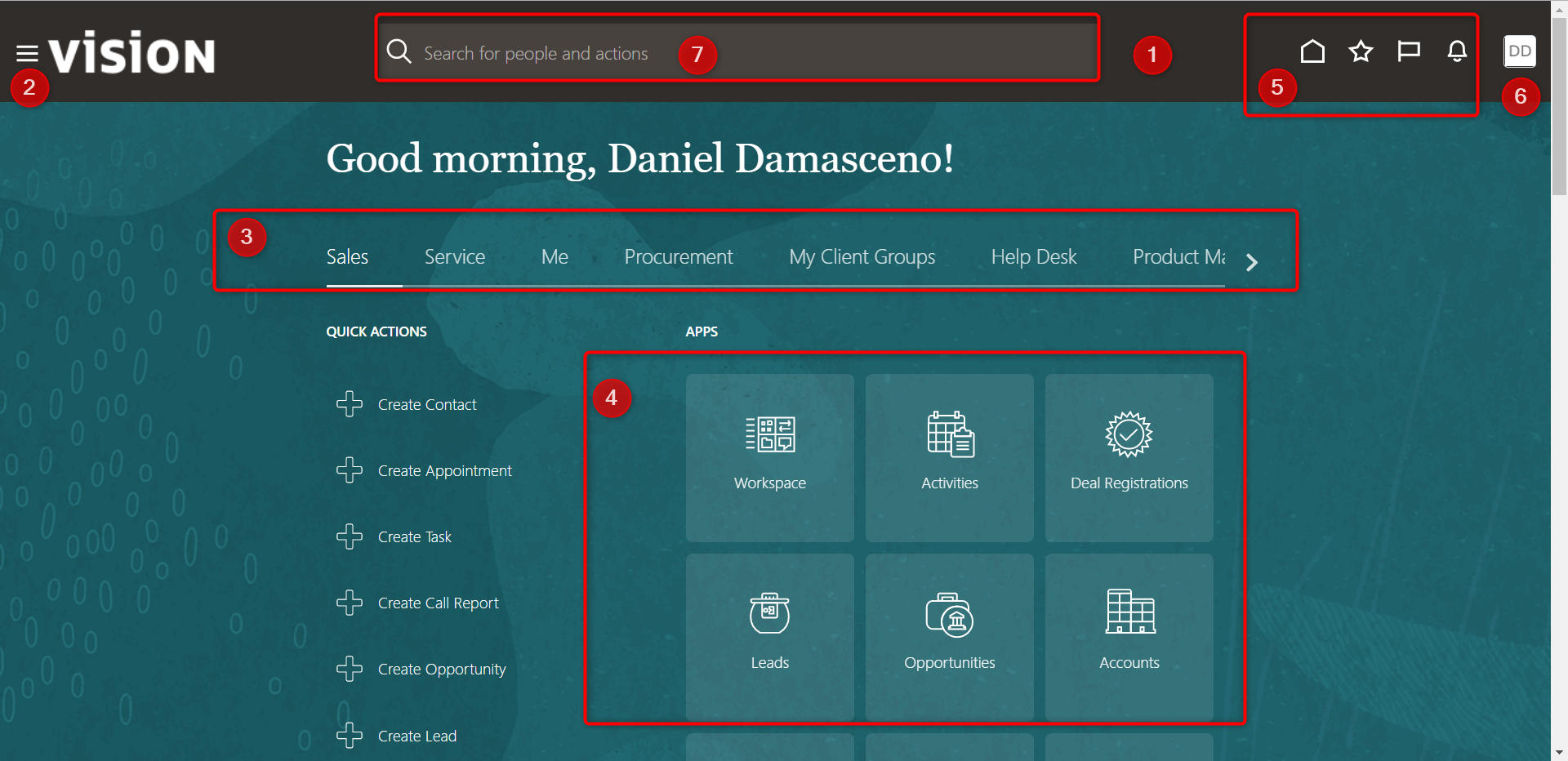
**1. Global Header:** The uppermost region of the user interface remains constant regardless of the screen. The navigator and quick access icons can be found here.
**2. Navigator:** This shows a drop-down list of the functions (menus and submenus) that are available to you. You can open any of the work areas to which you have access.

**3. Functions:** Displays the work areas to which you have access. This access is determined by the roles you have assigned to yourself.

**4. Apps / Applications:** Shows you the applications to which you have access. The roles and data access that were assigned to your user determine this access.

**5. Quick Access Toolbar:** Use the Quick Access toolbar icons to quickly access your (in order from left to right):

**5.1 Home:** Bring you back to the main screen - Springboard.

**5.2 Favorites and Recent Items:** Allows users to return to flows that they have recently accessed, typically within a single session but not always.


**5.3 Watchlist:** Provides a set of work area shortcuts based on items that a user wants to monitor.


**5.4 Notifications:** Allow users to view all notifications for the selected domain or account, click on the icon. The All Notifications page appears, which is useful for monitoring ongoing service outages as well as planned service outages that Oracle schedules for service maintenance.


**6. Settings and Actions:** If you are a basic user, this access will allow you to sign into the system and define some personalization, such as preferences. However, if you are a consultant, you will have additional access such as ***Administration --> Setup, and Maintenance*** to begin configuring the system.

**7. Search:** You can use search to find a specific person or action.


{% hint style="info" %}
***Open Multiple Tabs****:** You can have multiple tabs open in Oracle Applications Cloud. This allows you to move more quickly between the functions available to you.*
{% endhint %}
### Alternative Home Page Layouts
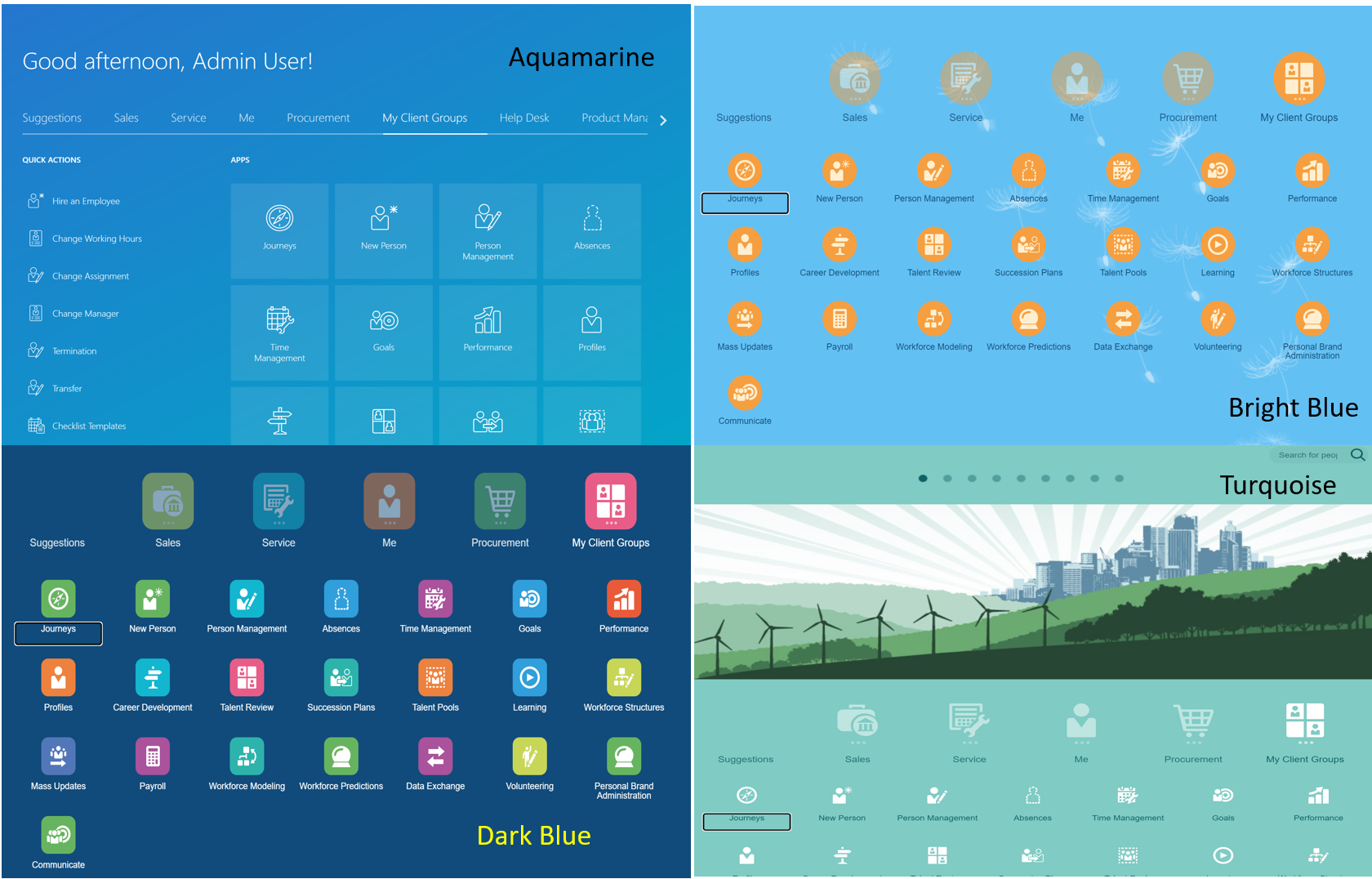
Don't worry if your home page looks different! This is because your administrator chose a panel or banner layout for your home page, or a news feed layout with a different look and feel.
Here's a different look and feel for your news feed.
{% hint style="info" %}
You can change your layout using these extensions:
https\://yourinstance.oraclepdemos.com
**Extensions**
/fscmUI/faces/FuseWelcome?fndThemeName=Aquamarine
/fscmUI/faces/FuseWelcome?fndThemeName=Bright%20Blue
/fscmUI/faces/FuseWelcome?fndThemeName=Dark%20Blue
/fscmUI/faces/FuseWelcome?fndThemeName=Turquoise
/fscmUI/faces/FuseWelcome?fndThemeName=Redwood
**Example**
https\://yourinstance.oraclepdemos.com/fscmUI/faces/FuseWelcome?fndThemeName=Aquamarine
{% endhint %}
### Sign Out and Session Timeout
**Session Lifetime Timeout**
If you've successfully authenticated in the application and are actively working on it, your session will remain active for a predefined period of time, known as the session lifetime timeout period. Even if you're using the application, your session ends after this time.
**Timeout Duration:** 8 Hours
**Session Inactivity Timeout**
This type of timeout takes into account the time since you last sent a request to the application server, such as responding to a poll or submitting a form. After this time, you will receive a message with the option to extend the session. If you do not extend the session, you will be signed out.
**Timeout Duration:** 10 minutes
**Idle Session Timeout**
This type of timeout takes into account how long you leave your application idle. After this time, you will receive a message and the option to restart the session. When you restart the session, the timeout duration is reset. You will be signed out of the application if you do not restart the session.
**Timeout Duration:** 30 minutes
**Browser Inactivity Timeout**
This type of timeout takes into account how long you leave your browser idle. Your session will end after this time.
**Timeout Duration:** 30 minutes
{% hint style="success" %}
When working with your Cloud ERP, you can have multiple tabs open in your browser. This allows you to switch between available roles/tasks more quickly.
{% endhint %}
 
**3. Functions:** Displays the work areas to which you have access. This access is determined by the roles you have assigned to yourself.

**4. Apps / Applications:** Shows you the applications to which you have access. The roles and data access that were assigned to your user determine this access.

**5. Quick Access Toolbar:** Use the Quick Access toolbar icons to quickly access your (in order from left to right):

**5.1 Home:** Bring you back to the main screen - Springboard.

**5.2 Favorites and Recent Items:** Allows users to return to flows that they have recently accessed, typically within a single session but not always.


**5.3 Watchlist:** Provides a set of work area shortcuts based on items that a user wants to monitor.


**5.4 Notifications:** Allow users to view all notifications for the selected domain or account, click on the icon. The All Notifications page appears, which is useful for monitoring ongoing service outages as well as planned service outages that Oracle schedules for service maintenance.


**6. Settings and Actions:** If you are a basic user, this access will allow you to sign into the system and define some personalization, such as preferences. However, if you are a consultant, you will have additional access such as ***Administration --> Setup, and Maintenance*** to begin configuring the system.

**7. Search:** You can use search to find a specific person or action.


{% hint style="info" %}
***Open Multiple Tabs****:** You can have multiple tabs open in Oracle Applications Cloud. This allows you to move more quickly between the functions available to you.*
{% endhint %}
### Alternative Home Page Layouts
Don't worry if your home page looks different! This is because your administrator chose a panel or banner layout for your home page, or a news feed layout with a different look and feel.
Here's a different look and feel for your news feed.

**3. Functions:** Displays the work areas to which you have access. This access is determined by the roles you have assigned to yourself.

**4. Apps / Applications:** Shows you the applications to which you have access. The roles and data access that were assigned to your user determine this access.

**5. Quick Access Toolbar:** Use the Quick Access toolbar icons to quickly access your (in order from left to right):

**5.1 Home:** Bring you back to the main screen - Springboard.

**5.2 Favorites and Recent Items:** Allows users to return to flows that they have recently accessed, typically within a single session but not always.


**5.3 Watchlist:** Provides a set of work area shortcuts based on items that a user wants to monitor.


**5.4 Notifications:** Allow users to view all notifications for the selected domain or account, click on the icon. The All Notifications page appears, which is useful for monitoring ongoing service outages as well as planned service outages that Oracle schedules for service maintenance.


**6. Settings and Actions:** If you are a basic user, this access will allow you to sign into the system and define some personalization, such as preferences. However, if you are a consultant, you will have additional access such as ***Administration --> Setup, and Maintenance*** to begin configuring the system.

**7. Search:** You can use search to find a specific person or action.


{% hint style="info" %}
***Open Multiple Tabs****:** You can have multiple tabs open in Oracle Applications Cloud. This allows you to move more quickly between the functions available to you.*
{% endhint %}
### Alternative Home Page Layouts
Don't worry if your home page looks different! This is because your administrator chose a panel or banner layout for your home page, or a news feed layout with a different look and feel.
Here's a different look and feel for your news feed.